
SAQA VPN
on Android
Use the free Happ app to connect SAQA on Android. It takes a couple of minutes.
Before you connect
- You need an active SAQA VPN subscription — get one and your key in our bot.
- Before connecting for the first time, turn off other VPN apps and the system proxy.
- Your key is personal: don't share it or show it in screenshots.
Connect with Happ
- 1
Install Happ
Tap the button below to download Happ.apk. Open it from the notification or your Downloads folder and tap Install.
If your phone asks to allow installs from unknown sources, allow it for your browser, then go back and continue.
Tip: Have Google Play? You can also install Happ from there: Happ on Google Play. Screenshot placeholder
img/android-happ-1.png - 2
Copy your connection key
Open the SAQA bot in Telegram, go to Мои активные подписки (My active subscriptions) and tap the subscription link — it will be copied in full.
Tip: Copy the whole link and don't change anything in it. Screenshot placeholder
img/android-happ-2.png - 3
Add the subscription
Open Happ, tap + and choose Paste from clipboard. Confirm pasting if your phone asks.
Wait a few seconds for the subscription to be added and SAQA servers to load.
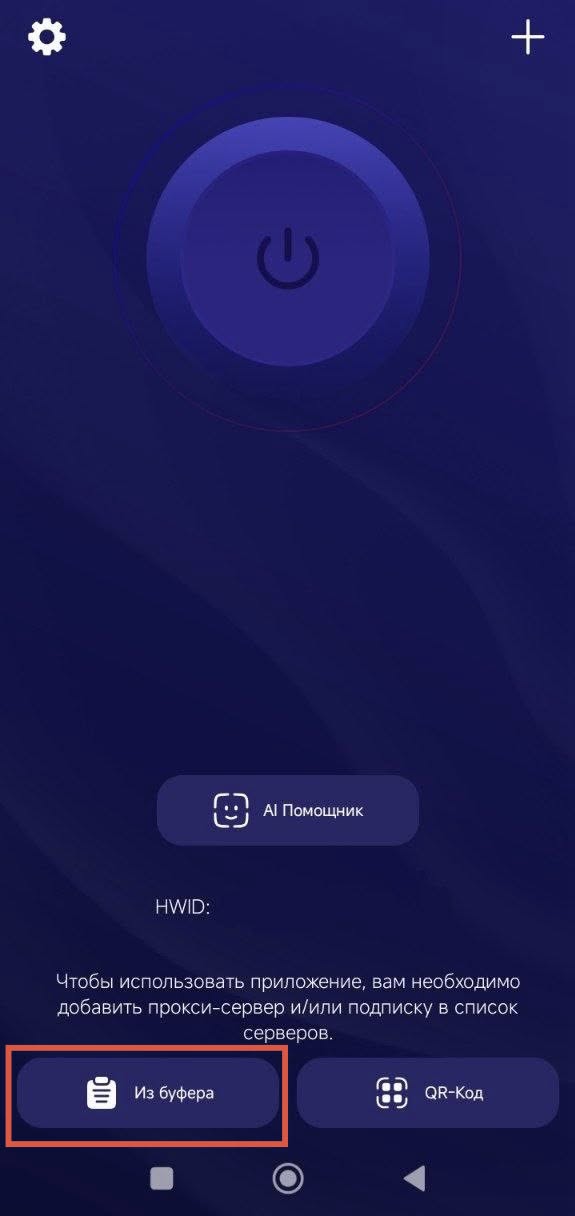 Screenshot placeholder
img/android-happ-3.png - 4
Connect
Pick a server and tap the power button. When Android asks to create a VPN connection, tap OK.
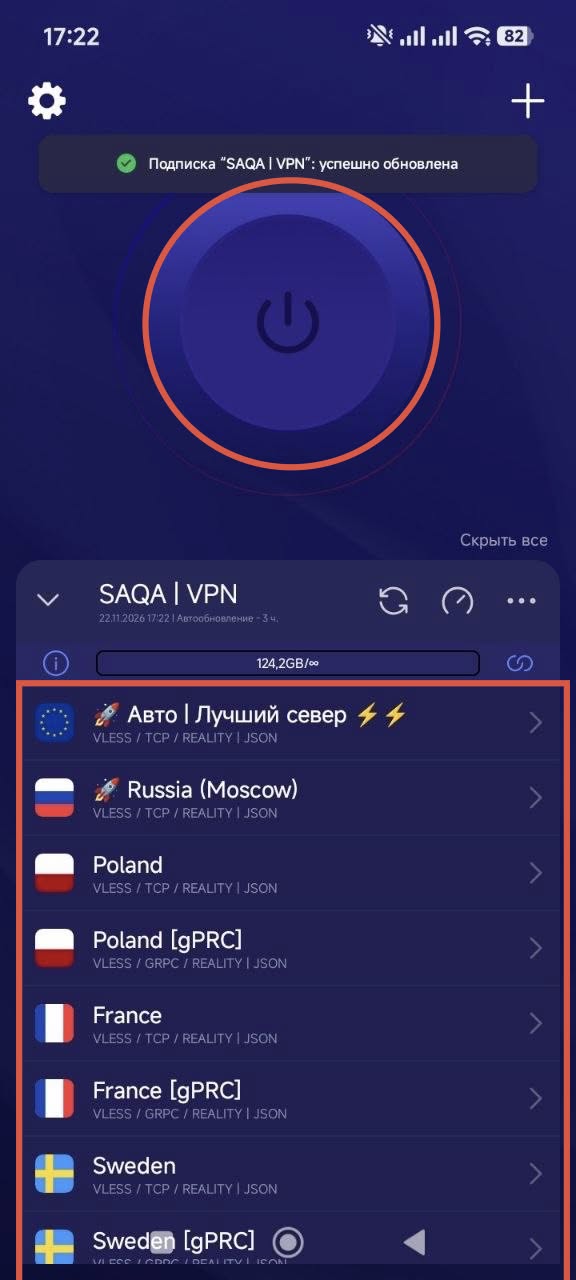 Screenshot placeholder
img/android-happ-4.png - 5
Turn on auto-update optional
Gear icon → Advanced settings → Subscriptions. Turn on Auto update, set the interval to 1 h and turn on Update on open — this keeps the SAQA server list fresh.
 Screenshot placeholder
img/android-happ-5.png
Done — you're connected to SAQA
Next time just open the app and tap the connect button.
Where do I get the connection key?
In the SAQA bot → «Мои активные подписки» (My active subscriptions). Tap the subscription link to copy it — copy it in full.
No servers appeared after pasting the key
Most likely the key wasn't copied in full. Copy it from the bot again and re-add the subscription.
Check in the bot that your subscription is active.
VPN won't turn on or sites won't load
Turn off other VPN apps and the system proxy.
Refresh the subscription in the app and pick another server.
Still not working? Toggle Wi-Fi / mobile data and connect again.
Happ isn't in the App Store
On iPhone and iPad you can use INCY or Wrabbit Proxy — your SAQA key works the same way. INCY guide.
Can I use it on several devices?
The number of devices depends on your plan — see it in the bot. On each device, add the key following that device's guide.
Couldn't connect?
Message SAQA support: tell us your device and the step where it went wrong.